Illustrated WeChat connection guide
Choose the official shared account or your own independent account under Channels. Screenshots show the live Chinese UI captured October 8, 2026 in a test business; do not copy its name or widget address.
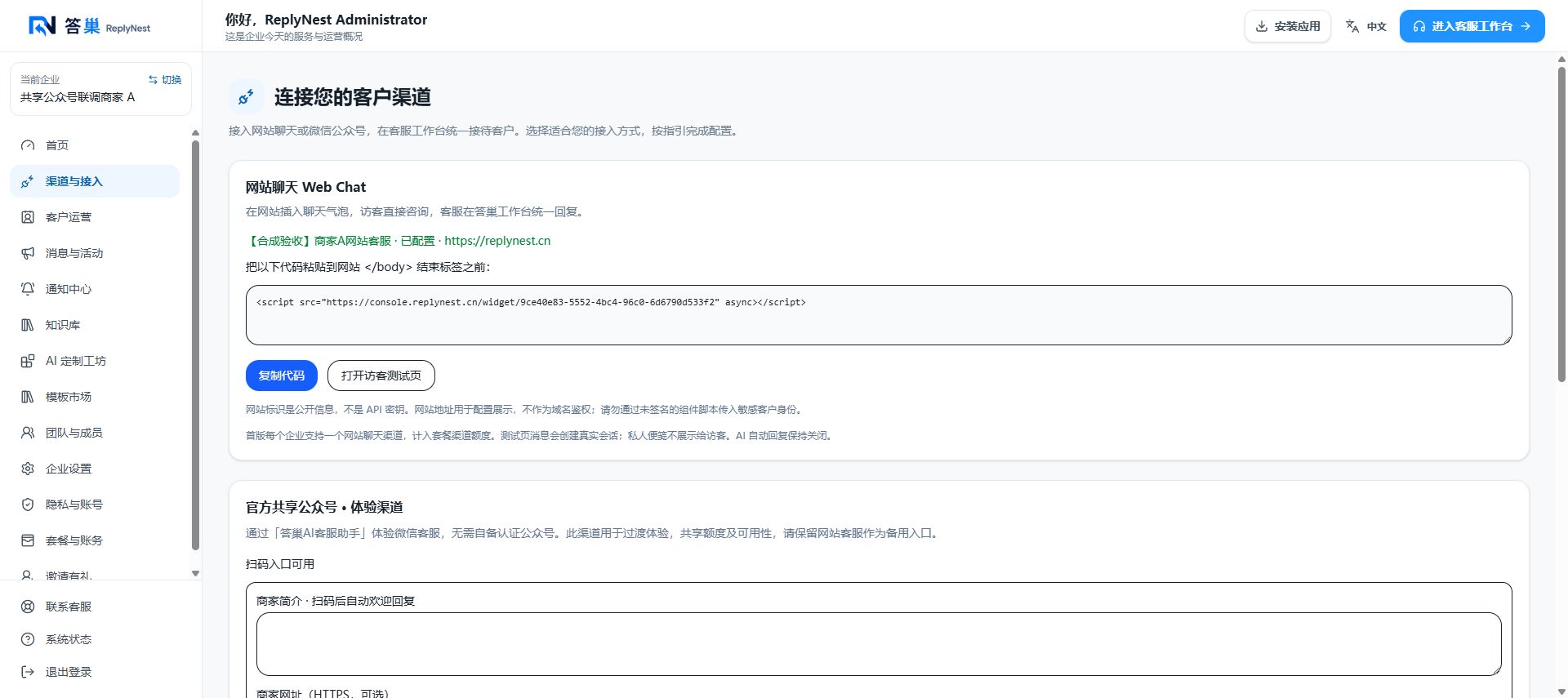
Shared account
Confirm the current business, open the shared-account section, save a public introduction and optional HTTPS website. Generate a long-lived merchant QR code for a website/poster or a temporary code for testing, checking the displayed validity. Scan with WeChat, follow and verify your current merchant, send a test message, reply from the workspace, and check the merchant-prefixed response.
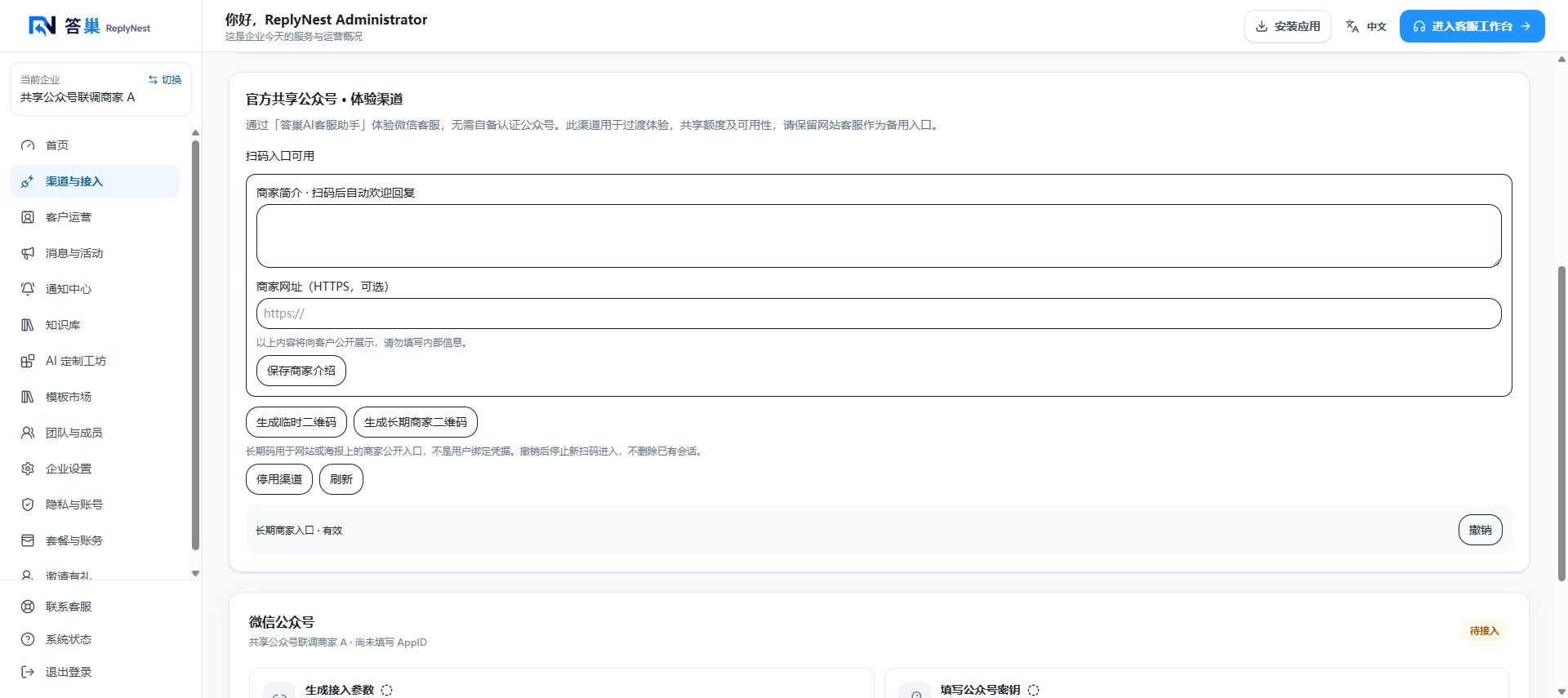
A merchant QR code is a public entry, not a login credential. Revocation blocks new scans without deleting conversations; hiding its image does not revoke it. Following the shared account or scanning its generic QR code does not select your merchant. Check Switch merchant. Shared channels do not support marketing broadcasts.
Independent account
You need administrator access and the relevant callback/customer-service permissions in WeChat's console. Certification does not guarantee every API permission. This is not mini-program integration.
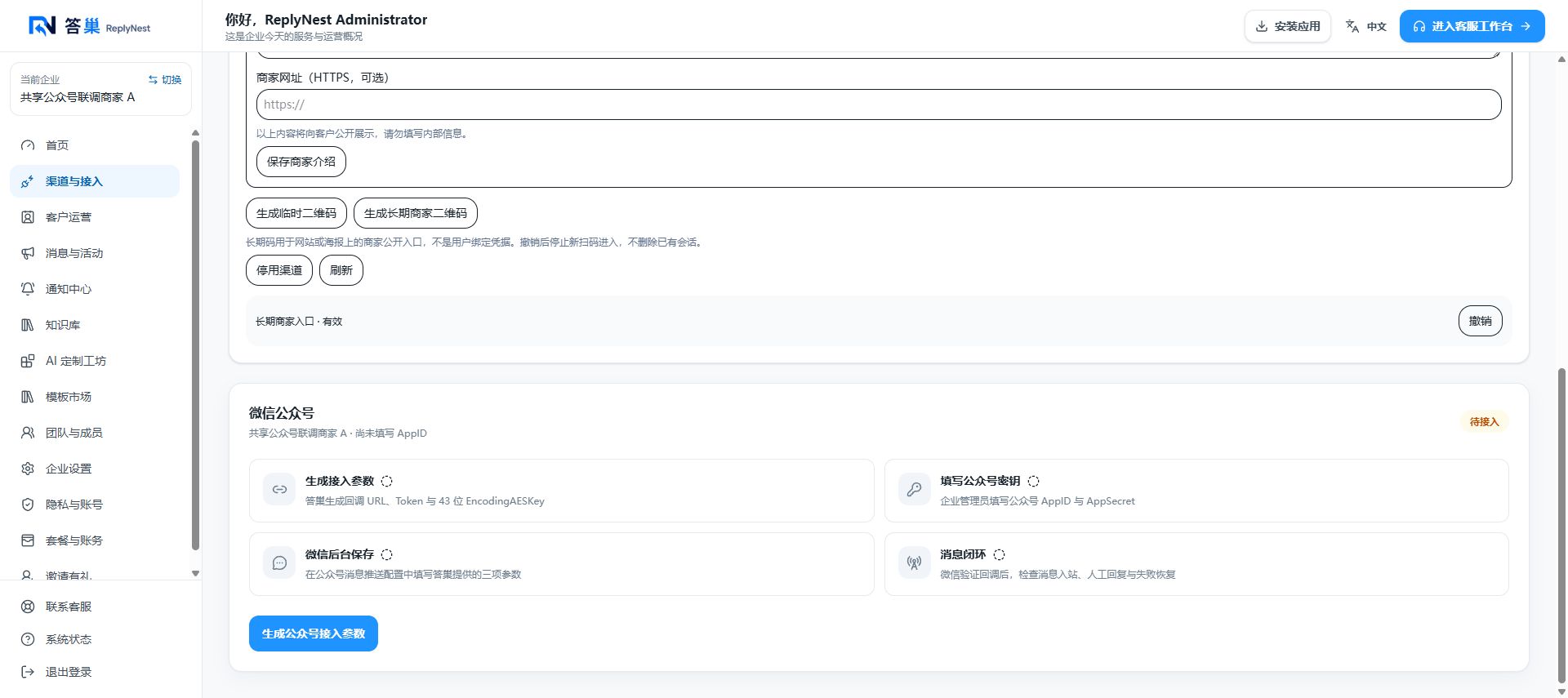
- Generate connection parameters in ReplyNest, then save that account's AppID and AppSecret.
- Find WeChat's development and server/message configuration. Map the parameters below and choose a matching encrypted-message configuration; menu labels may change.
- Submit and enable the configuration, complete verification and refresh ReplyNest. Saved credentials alone are not proof of verification. Preserve the previous configuration if replacing another system.
- Send unique new text from an authorized tester, confirm arrival in the correct business, reply manually and verify WeChat receipt. Channel setup does not enable AI reception.
| Parameter | Source → destination |
|---|---|
| AppID / AppSecret | This Official Account's developer settings → ReplyNest credential form |
| Full callback URL | ReplyNest → WeChat URL, not the homepage/workspace address |
| Token | ReplyNest → identical WeChat Token, not access_token |
| 43-character EncodingAESKey | ReplyNest → identical WeChat key; do not generate another separately |
For an IP allowlist, ask support for the service's outbound IP, not your PC address or guessed callback DNS IP. Do not paste credentials into chats, knowledge, AI requests or public screenshots. Regenerating callback parameters invalidates old values and requires updating WeChat.
Troubleshooting
Verification failure: check URL, identical Token/AESKey, AppID and saved settings. No inbound message: check enabled reception, correct account/business and previous integration. Failed outbound: check AppSecret, permissions, IP allowlist, reply window and rate limits. For no AI reply, check published/indexed knowledge, mode, channel consent, points, pause, grounding/risk and execution records.
Customer-service replies commonly have a 48-hour interaction window, subject to WeChat's API conditions. Accepted does not mean read; inspect uncertain results before resending.
References
Tencent Cloud's official callback guide explains the parameters and verification. Its self-hosted Tencent IM demo is not required: ReplyNest users do not purchase IM, deploy that sample or write callback code.
WeChat developer entry: its redirected latest guide could not be read directly during this update, so old menu labels are not represented as current guarantees. For help, provide business name, time and redacted error codes, never credentials or private customer screenshots.